


 In today’s digital world, having clean and professional-looking images is essential. An AI image background remover is a tool that automatically removes a photo's background, leaving the main subject clear and ready to use. This technology is especially important for e-commerce, where product images need to look polished, and for social media, where eye-catching visuals can boost engagement. Additionally, designers and AI art creators rely on background removal to save time and focus on creativity rather than manual editing. Moreover, using AI tools can speed up workflows and maintain consistency across multiple images. Not only that, but removing photo backgrounds is useful when you need to use the photo in other projects. In this article, we will review some easy-to-use AI image background removers suitable for different purposes. By the end, you’ll have a clear idea of which the best AI background remover fits your needs.
How to Identify the Best Background Remover
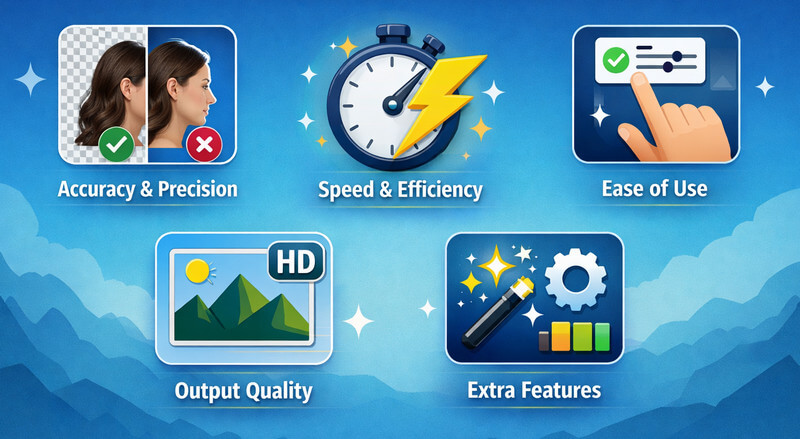
When choosing the best background remover, several key factors determine how effective and convenient the tool is. A good remover should not only produce clean results but also be fast, easy to use, and offer the right features for your needs. Below, we outline the main criteria to consider when selecting a tool.
- Accuracy: Pick a background remover that has good accuracy in separating the subject from the background. The best tools can detect edges precisely, even with hair, fur, or transparent objects, so your final image looks clean and professional.
- Ease of Use: Not all AI tools are beginner-friendly. So, choose an AI image background remover that is easy to use and navigate. There are tools that are fully automatic and require just a few clicks, while others provide advanced controls for detailed editing. Beginner-friendly tools save time and reduce frustration.
- Speed: Some background removers are AI-based, so they will automatically process the images in seconds. On the other hand, background removers let you remove the background yourself, but it takes longer and offers more control.
- Output Formats: Choose a tool that supports image output formats such as PNG, JPG, PSD, and WebP. The right format matters depending on whether you need transparency, high quality, or compatibility with other software.
- Cost: When choosing a tool, price is also one factor you can consider. Free tools are suitable for occasional use, while paid versions often provide higher quality, batch processing, and extra features. Your choice depends on how often you remove backgrounds and your budget.
- Extra Features: Find a tool that not only offers background removal but also has various features. These can include batch processing, AI refinement, or built-in editing tools, all of which save time and let you polish images without switching between programs.
Review of the 10 AI Background Removers
This section reviews the top 10 AI background removers available today. It includes free online tools, desktop software, and mobile apps to help you find the right solution for your needs.
| Tool | Ease of Use | Speed | Output Quality |
|---|---|---|---|
| AceThinker AI Background Remover | Simple with one‑click removal | Fast background detection | Clean edges with solid detail retention |
| Remove BG | Extremely straightforward | Near‑instant removal | Very precise edges, handles fine details |
| Canva | Drag‑and‑drop with guided interface | Quick in editor | Smooth results with optional touch‑ups |
| Photoroom | Mobile‑oriented with clear one‑tap controls | Fast for both single and batch | Accurate subject isolation for products/portraits |
| Lunapic | AI removal and manual refinement | Mid‑speed processing (AI assisted) | Acceptable on simple/moderate complexity |
| AceThinker PicWish | Easy auto removal + clear refine brush options | Rapid even in bulk mode | High‑quality cutouts with detailed edges |
| Picsart | User‑friendly with extra editing tools | Fast with stable internet | Good but may need manual edge cleanup |
| Microsoft Paint | Very basic tools familiar to Windows users | Moderate removal using built‑in tools | Limited cutout quality, no real transparency |
| Pixelcut | Streamlined for quick product edits | Rapid for typical images | Crisp and clean for e‑commerce visuals |
| Fotor | Guided workflow with refinement brush | Fast AI removal | Polished output with adjustable fine details |
1. AceThinker AI Background Remover
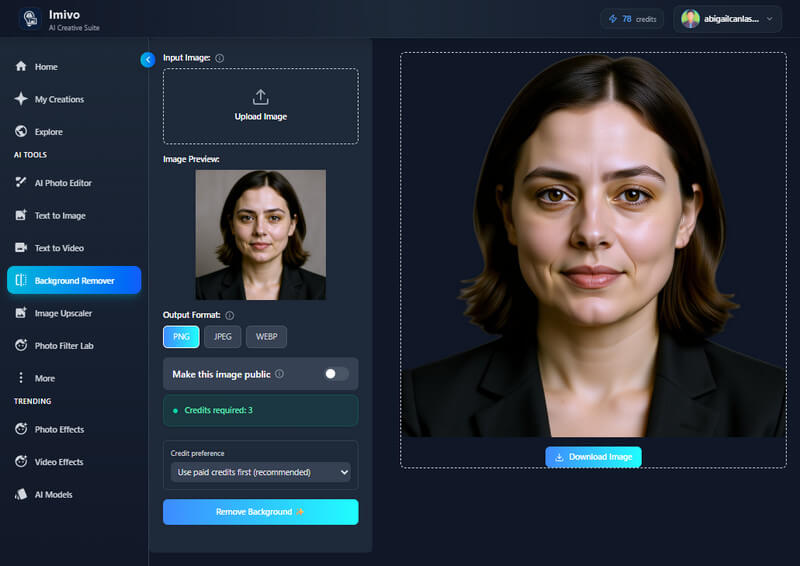
The first best AI background remover that we review is the AI background remover by AceThinker. It is a web-based tool that is easy to access and compatible with both old and modern browsers. The tool supports image files up to 10 MB in size, including large ones. In addition, this background remover ensures you get a true transparent background, not a solid white one. This means you can easily change the background whenever you want, without hassle. Furthermore, it supports various output formats, including PNG, JPEG, and WebP, which are ideal for different purposes. Although it's free to access, the tool is credit-based, requiring 3 credits to remove a photo background. Luckily, new users receive 10 credits to try the tool.
2. Remove Bg
For users who're looking for a free tool, you can try Remove Bg, an online-based background remover. This AI-powered tool automatically detects and removes a photo's background after upload. Also, you can download your images only as transparent PNGs, which is limited to those who want other output image formats. Moreover, after removing the background, you can add a new background from the tool's provided backgrounds. In addition, Remove Bg offers a CutOut feature that lets you remove unnecessary subjects. Furthermore, this tool is also considered a bulk background remover as it supports removing multiple photo backgrounds at once.

3. Canva
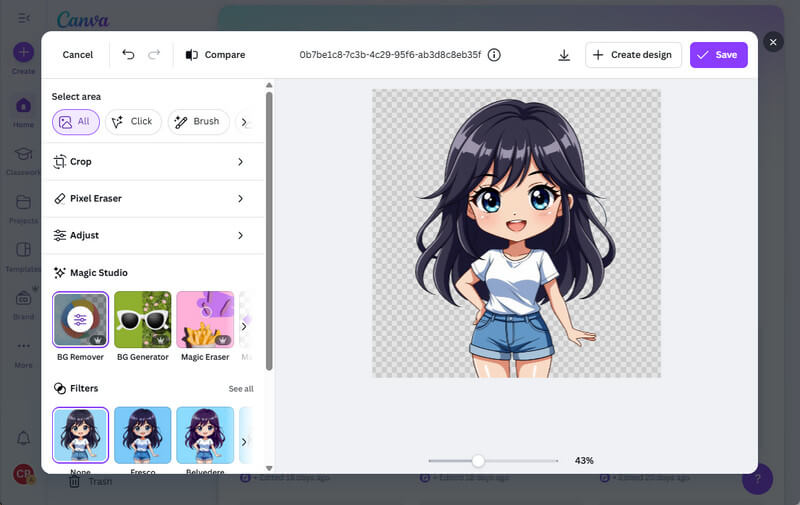
If you want an advanced background-removal tool with a range of features, go for Canva. One feature of this tool is its background removal. The tool has an auto subject detection feature, which means that once the photo is uploaded, it will automatically remove the background and retain the main subject. Aside from that, you can export the edited photos in your preferred image formats, such as PNG, transparent background PNG, JPG, and more. Moreover, aside from photos, you can also remove backgrounds of your videos in under 90 seconds, which is useful for other users who want to change video backgrounds easily. However, Canva is not entirely free; you need a subscription plan to use its background remover feature. Still, this is the best background removal tool available on mobile phones and computers, and it is accessible online.
4. Photoroom
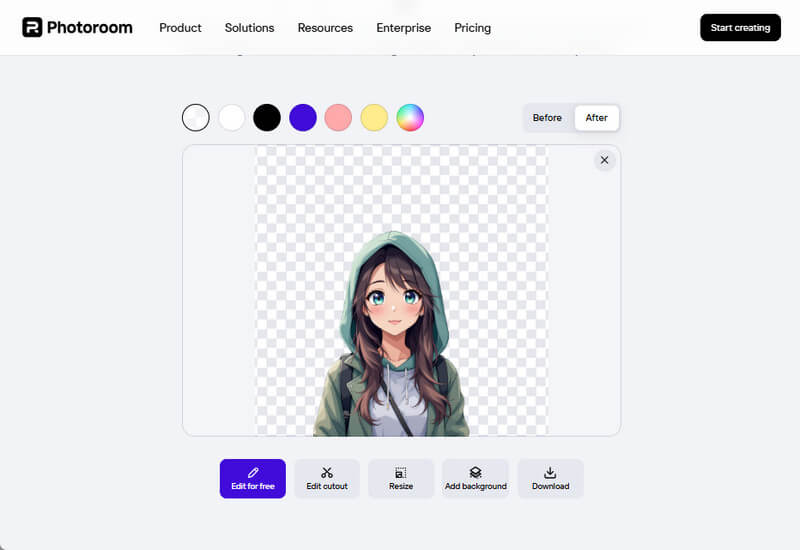
Like Canva, Photoroom also has apps for Android and iOS, and it is accessible online. Like the background removers reviewed in the preview, this tool also uses AI to remove backgrounds and produce precise cutouts in just one tap. It automatically detects the main subject, which makes it ideal for product photos, portraits, and social media posts. After removing the background, you can replace it with solid colors, images, or ready-made templates, depending on your preference. In addition, PhotoRoom includes retouch tools to remove unwanted objects and clean up edges. Furthermore, Photoroom offers a range of features to enhance your photos. This includes adding shadows, outlines, reflection, duplicating the main subject, resizing, changing the position, and many more. However, some users report that it struggles with very fine details compared to specialized tools.
5. Lunapic
Recently, Lunapic added a new feature, Auto Background Removal, that can improve users' editing experience. Lunapic works entirely online with no downloads, signups, or subscriptions required. This means you can use it instantly in any browser without complicated steps. There are various ways to remove backgrounds in Lunapic. First, use its auto background feature to get precise cutouts. Second, you can remove the background manually using the Magic Wand and its Eraser tools. Another one is using the Lunapic Crop tool, which is only useful for photos that have a perfect shape, like a circle, box, or rectangle, which is easy to crop and get the main subject only. Likewise, as with the other tools, you can save the edited photo in PNG format with a transparent background. However, the interface of this best free background remover online looks outdated and can feel less intuitive than modern tools.

6. AceThinker PicWish
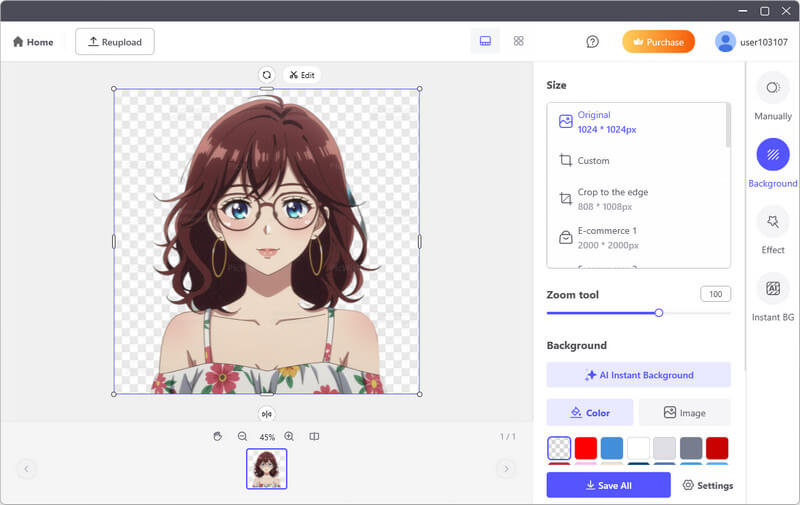
Another advanced image background remover that is available on Windows and Mac is AceThinker PicWish. The tool is AI-driven, automatically detecting and removing the background from photos. In fact, you can upload and process up to 30 images at once, which is very useful for those who work with many images. In addition, AceThinker PicWish lets you manually remove the background if you still need to make adjustments. There are some cases where the AI does not produce precise cutouts, especially when the photo has complex subjects. You can utilize the brush or lasso tool to remove unwanted areas or restore parts of the image that were accidentally erased by the AI. Furthermore, this AI background remover also lets you add new backgrounds, such as solid colors, or use its AI Instant Background feature to generate new ones.
7. Picsart
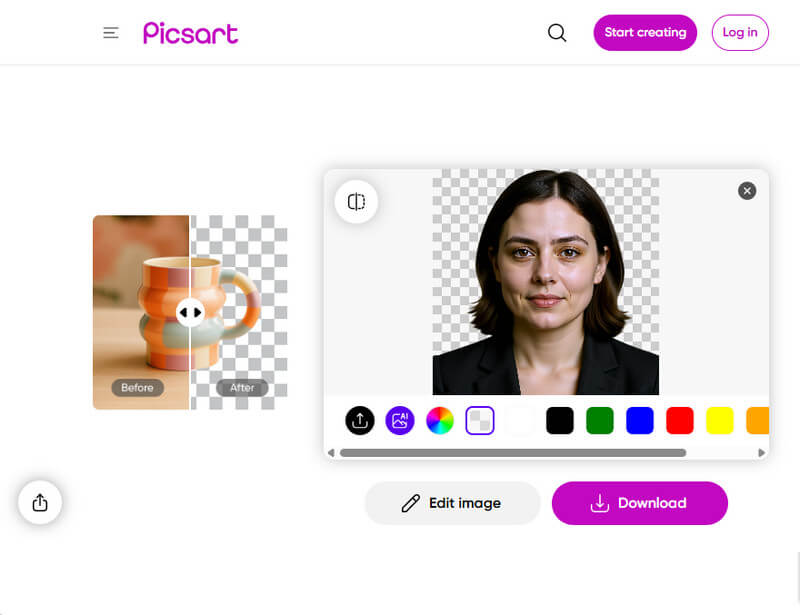
Picsart is a photo editing tool available on mobile phones (Android and iOS) and online. One of the tool's features is its Background Remover. It uses AI to ensure accurate edge detection and remove background from your photos instantly. In addition, Picsart provides a transparent background that saves in PNG format. Aside from removing the background, you can also add a preferred solid color background, generate a new background, or upload your own background. Because it’s part of Picsart’s larger editing suite, you can continue editing, like adding text, effects, filters, or cropping your image after removal. However, the Picsart background remover is only available with the Picsart Pro or Gold subscription plan, which is not suitable for users looking for a free mobile app.
8. Microsoft Paint
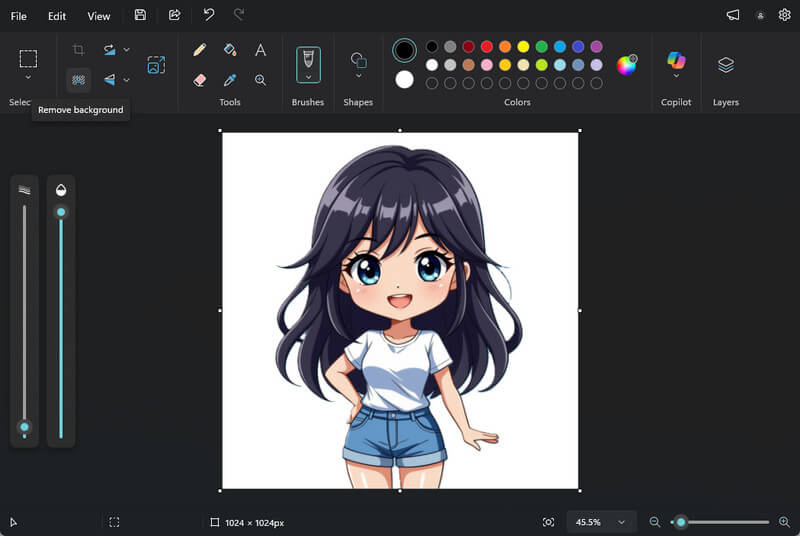
Another best free background remover is Microsoft Paint. It is a built-in photo editing tool for Windows users that offers a range of editing features. One of these features is its Auto Background Remover. You can use this to remove the background of your photos with AI, ensuring precise cutouts. Furthermore, you can save the edited photo in formats such as PNG, JPG, GIF, and BMP, making it perfect for different projects. However, compared to other tools that provide a real, transparent background, MS Paint does not. It can only give you a solid white background, not a fully transparent one, even if you save it as a PNG. Still, making a transparent background in Paint is easy and perfect for those users who don’t want additional software.
9. Pixelcut
The next on the list of the AI background removers we reviewed is called Pixelcut. Pixelcut is an AI-powered photo editor and graphic design app available on Android and iOS devices, as well as online. It comes with numerous features, including the background remover. With its background-removal feature, it automatically detects, isolates the main subject, and removes the background instantly. Moreover, the tool supports various output formats, including PNG (with or without transparency), JPEG, SVG, and WebP. Plus, the tool lets you compare before-and-after results in real time. Furthermore, Pixelcut supports batch processing, so if you have many images that need their backgrounds removed, you can edit them instantly. However, the bulk background remover is only available to users with a Pro or Business subscription.

10. Fotor Background Remover
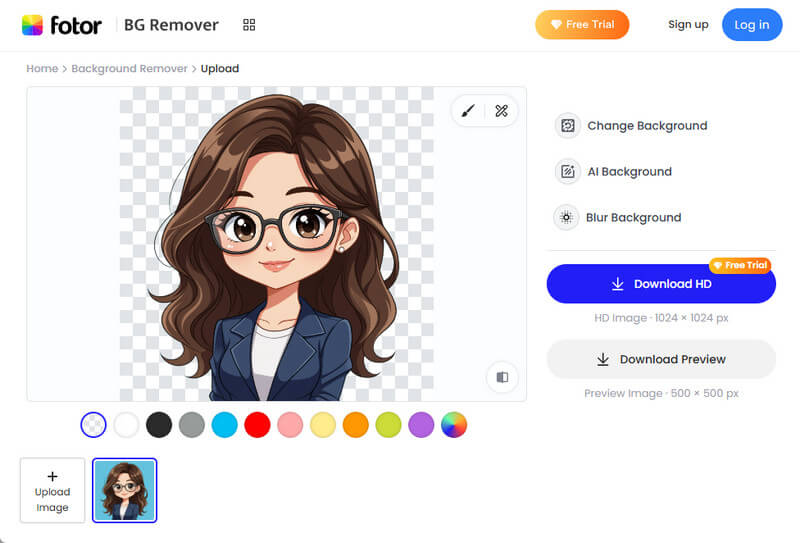
The last best photo background remover we will review is Fotor's Background Remover. It has high accuracy in removing background, delivering precise results even with complex edges such as hair and animal fur. The tool also supports processing multiple images at once, which helps speed up editing when working with many photos. In addition, you can download the edited image with real transparency in PNG format. Moreover, Fotor also lets you refine the image after removing the background with its Magic Brush tool. You can manually erase or restore parts of the image to refine edges and fix details. Additionally, you can replace the background with a solid color, generate new ones, or add a blurred background. On top of that, Fotor has a mobile app available on iOS and Android devices.
Conclusion
Choosing the best AI image background remover depends on your goals and how often you edit photos. For beginners, tools like Remove BG, AceThinker AI Background Remover, Lunapic, and Microsoft Paint are simple and easy to start with. Meanwhile, professionals who need more control can rely on Canva, AceThinker PicWish, Fotor, and Pixelcut for higher accuracy and batch features. For mobile users, apps such as Photoroom and Picsart are convenient and powerful on the go. Moreover, each tool has its own strengths, so there is no single perfect choice for everyone. However, trying out a few options can help you find what works for your workflow. In the end, testing these tools can save you time and improve image quality. With the right background remover, you can make clean, professional photos more quickly for any project.