menu

Make Creative Drawing Art Online

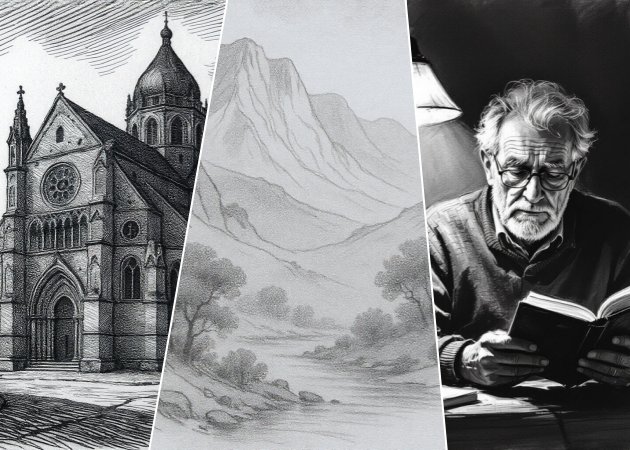
variety of sketch styles

Variety of Sketch Styles

It's never been simpler to turn your photos into sketches. With a variety of sketch styles available, you can choose between pencil, charcoal, or detailed line drawings to match your creative vision. Each style gives your image a different creative touch.

The tool works like a smart AI drawing generator, automatically converting your image into a realistic sketch. You don't need to know how to draw—just upload your photo. It's great for making portraits, gifts, or fun artistic experiments.

Color and Black & White Options

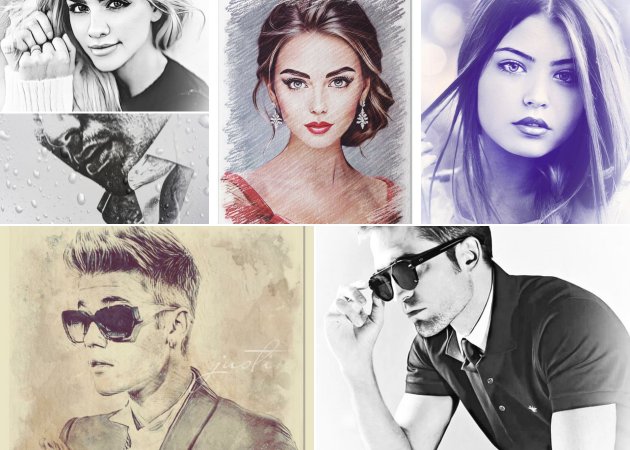
This feature lets you choose between a full-color version or a black and white photo sketch. The colored option gives your photo a vibrant, modern sketch feel. At the same time, the black and white effect adds elegance and a timeless artistic charm. Both create a unique style that highlights the beauty of your image.

You can also switch between these options instantly and preview the difference. Whether you want a real-life pencil drawing or the colored ones, it's the perfect way to match your sketch to your mood or aesthetic.

color and black & white options
realistic pencil effect

Realistic Pencil Effect

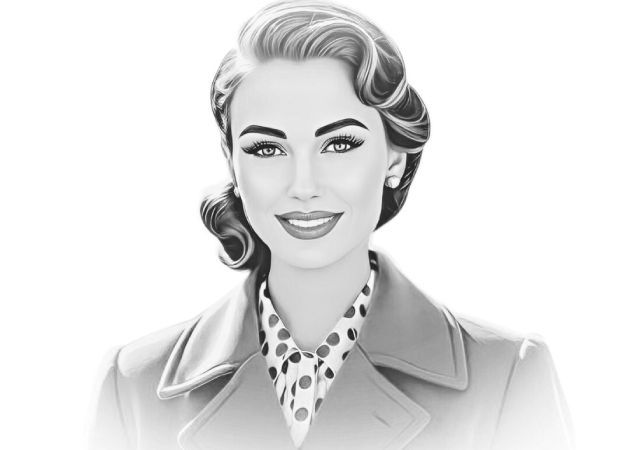
The tool's realistic pencil effect helps you turn picture into sketch art that looks hand-drawn. It carefully adds texture, shading, and fine pencil details that resemble real paper sketches. Besides, each line is smooth and natural, giving your image an authentic artistic feel.

Whether it's a portrait or a landscape, the tool keeps the essence of your photo intact. The result looks professional, like something you'd find in an artist's notebook. It's a simple yet powerful way to give your photos a creative, handmade touch.

How to Create Pencil Sketch from Photo?

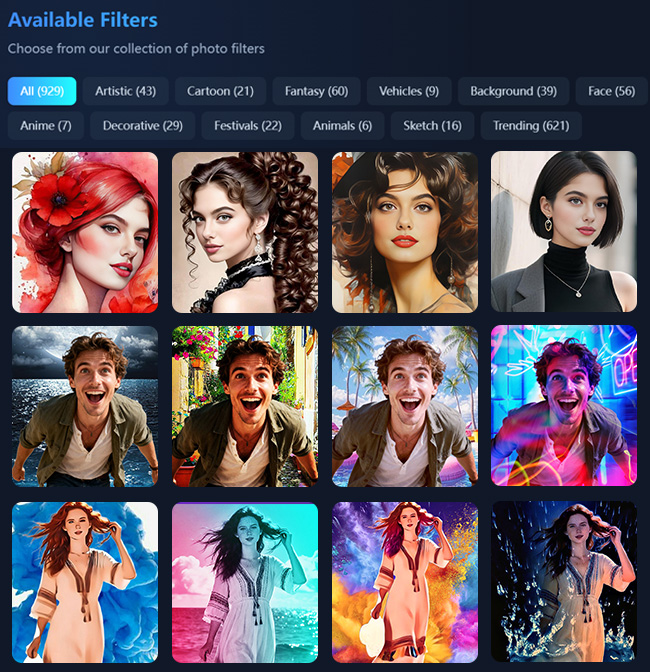
access photo sketch effects
choose ai model and drawing effect
generate and save output image
  • 01
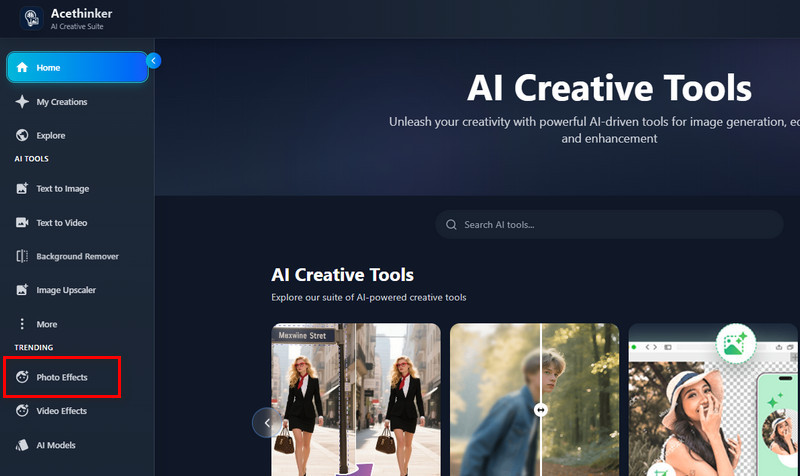
    Access the Photo Sketch Converter

    First, open a browser and access our Photo to Sketch Converter. Then, upload the portrait you want to turn into a drawing onto the online tool.

  • 02
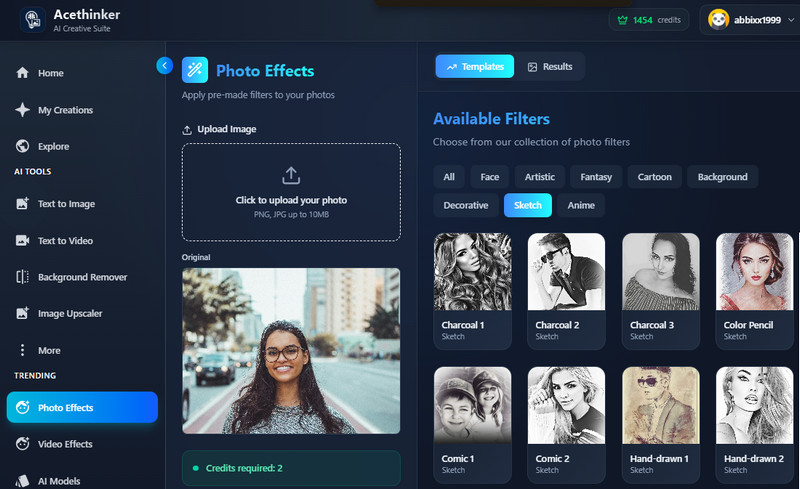
    Choose a Drawing Effect

    Next, scroll down through the photo effects on the right side until you see the sketch filter you want.

  • 03
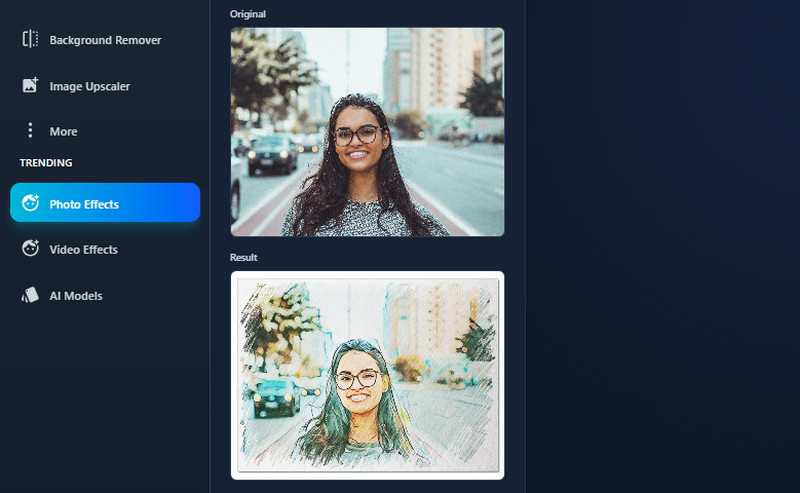
    Generate and Save the Output Image

    When ready, hit the Apply Effect button below and let the tool transform your image. Lastly, see the output image and click the download icon to save it.

Frequently Asked Questions

What type of photos can I sketch?

You can sketch almost any type of photo, such as portraits, group pictures, or even scenery shots. The image generator works best with clear, well-lit images where the subject is easy to see. Whether it's a selfie or a photo of your pet, you can turn it into a beautiful piece of sketch art.

What type of photos can I sketch?

You can sketch almost any type of photo, such as portraits, group pictures, or even scenery shots. The image generator works best with clear, well-lit images where the subject is easy to see. Whether it's a selfie or a photo of your pet, you can turn it into a beautiful piece of sketch art.

Are the results high-resolution?

Yes, the generated sketches are high-resolution, giving you clear and detailed results. You can download them without worrying about blurry lines or poor quality. They're perfect for printing, framing, or sharing online.

Can I use the sketch photos for commercial purposes?

Yes, you can use your converted sketch images for commercial projects as long as they're your own photos. You're free to use them for designs, marketing materials, or social media posts. Just make sure your uploaded photo doesn't infringe on anyone else's copyright.

Can I use the tool on my phone?

Absolutely! The tool works smoothly on mobile devices so that you can convert photos to sketches anytime. You don't need to install an app—just open the website on your phone and start creating.

product iconAceThinker PicWish

Turn Ordinary Images Into Extraordinary Photos

pro image editor
Back to Top
Contact Us
Learning Center