


 A checkered background usually means transparency in an image. It shows that parts of the image have no color or background and are meant to blend with whatever is placed behind them. This pattern commonly appears in PNG or GIF files when the background is removed. However, many users get confused when they see it, especially if the image is opened in basic viewers or uploaded to websites that do not support transparency well. Because of this, several problems can happen. For example, the checkered pattern can appear when you expect a solid background if you save an image as a JPG, or after incorrectly exporting or editing an image. In some cases, it can also affect printing or design work, since the pattern may appear as a gray grid on paper. In this article, we will provide a simple guide to remove a checkered background from an image step by step.
How to Remove Checkered Background From Image Online
If you have copied a PNG image but the checkered background appears in your editing tool or on your website, you can remove it online. A reliable online editor you can access is the AceThinker Image Generator & Editor. We have tried the tool's checkerboard background remover, and it is effective at removing the checkered pattern. What makes it especially valuable is its smart technology, which automatically finds the main object and separates it from the background. More than that, you don't have to be a skilled editor to use this tool, as it streamlines the process.
Furthermore, you can also use the object remover of this tool to remove dates from a photo or any unwanted objects from your images. Besides, it lets you change the background to a solid color or another image. This tool is particularly useful for efficiently preparing images for e-commerce platforms or presentations. It also supports multiple image file formats, including PNG, JPEG, and WEBP, giving you more options regarding file compatibility. Here are the steps on how to get rid of checkered background using this tool.
Step 1 Access the Background Remover
Begin by navigating to the AceThinker Image Generator & Editor website in your web browser. After that, log in to your account using your credentials. If you are a new user, you can register or sign up using your Google account or another email. Then, on the tool's main interface, locate and click on the "AI Background Remover."
Step 2 Upload the PNG Image
Once the AI Background Remover interface is active, upload the PNG image with the checkered background. To do this, click the "Upload Image" box to access your device's file explorer. Alternatively, you can simply drop and drag the image directly into the designated upload area.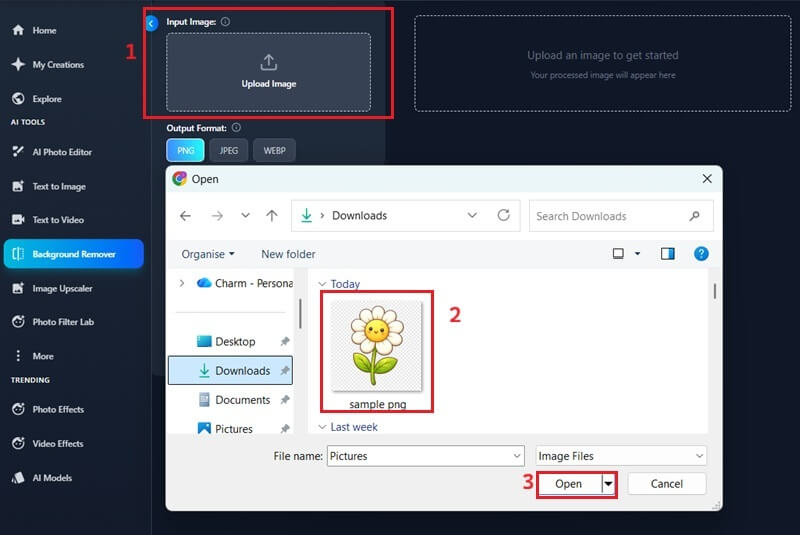
Step 3 Remove Checkered Background
After you upload the photo, choose your desired output format. We recommend using the PNG format to preserve your image's quality. Finally, click the "Remove Background" button at the bottom of the tool's interface to process your image.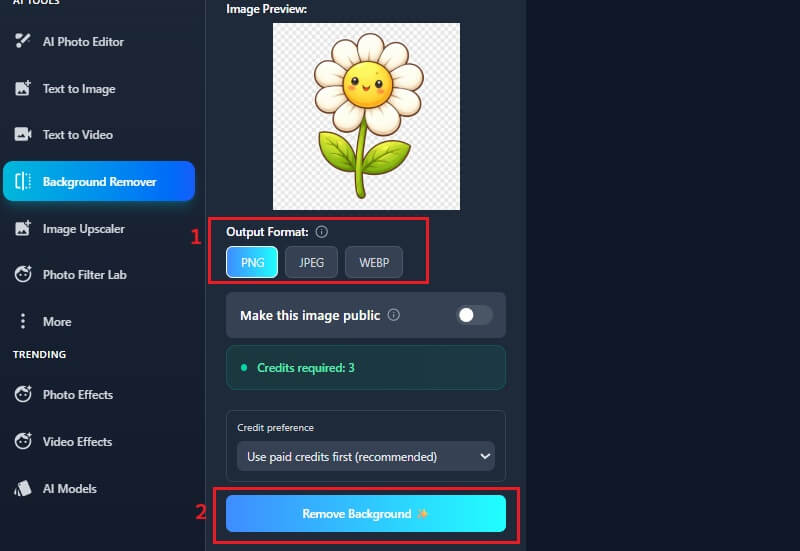
Step 4 Download the Image
Wait for the tool to complete the background removal process. Once it's done, it will appear on the preview panel. Click "Download Image" to save it to your device.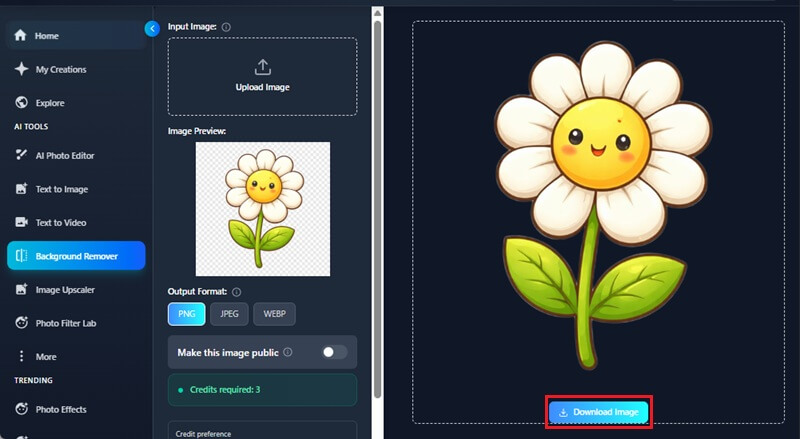
How to Remove Checkered Background from PNG in Photoshop
Another tool you can use as a checkered background remover is Adobe Photoshop. The checkered background you often see in Photoshop means the image is transparent. However, in some cases, this pattern appears in the image itself by mistake, necessitating its removal. That said, you can use various techniques in Photoshop to effectively eliminate these unwanted checkerboard patterns and achieve true transparency or a solid background.
One common approach is to use selection tools, including the Magic Wand or Quick Selection tool. These tools help you quickly select even areas, making it easy to separate and remove the checkered pattern. To use these tools, access them on the toolbar, click the checkered background, and press your delete key to remove them. However, if the image is really transparent, you can just change the transparency grid size; here’s how:
Step 1 Choose Image
On your devices, open Adobe Photoshop. Then, choose the photograph with a checkered background you want to edit. Wait for the image to load on your Photoshop interface.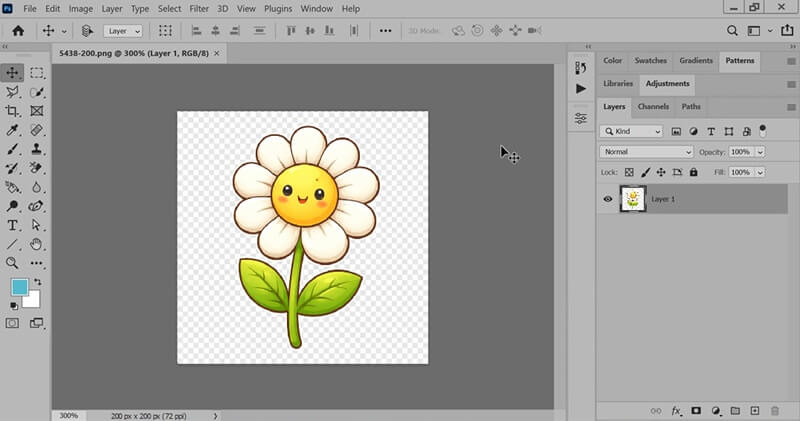
Step 2 Access Transparency & Gamut
From the toolbar, click the "Edit" option, and a drop-down menu will appear. Then, scroll down and find the "Preferences." Click it, and another menu will appear; click the "Transparency and Gamut" option.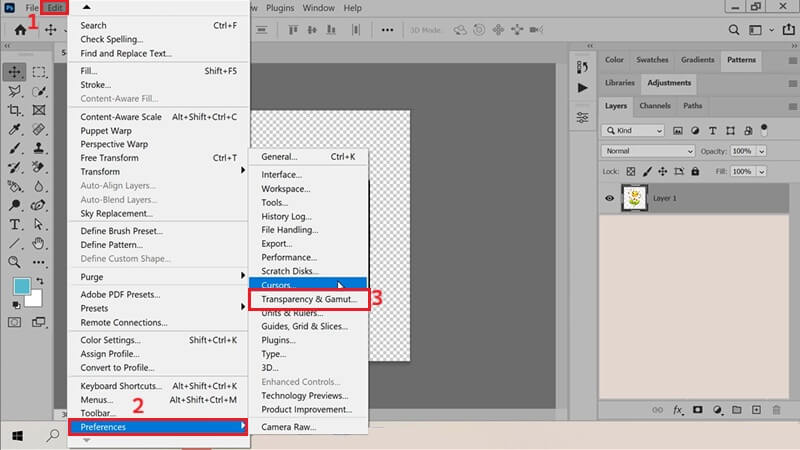
Step 3 Modify Transparency Settings
When you click the "Transparency & Gamut" option, you will be redirected to its page. Here, you will see that the "Grid Size" is defaulted to "Medium." To remove the checkered background in your Photoshop, choose "None." Then, select "OK,” and you will see your image with a white background.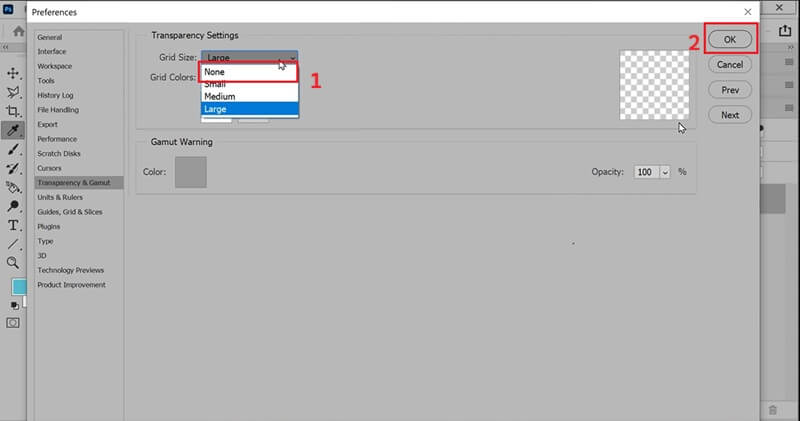
Frequently Asked Questions
How do I remove a checkered background online?
You can remove a checkered background online by using the AI Background Remover of AceThinker or Photoshop. These tools automatically detect the main object and remove the unwanted pattern. After that, you can download the image with a transparent or solid background.

Is the checkered background actually part of my image?
In most cases, the checkered background is transparent and not part of the image. However, if it appears after saving or exporting, the pattern may already be part of the image. When this happens, the checkered pattern needs to be removed manually or with an AI background remover.
Does removing the checkered background affect image quality?
Removing the background of your image does not lower its quality if done properly. Most tools, such as the AI background remover and Photoshop, preserve the original resolution and details. Still, this problem occurs only when the image is saved with heavy compression.
Conclusion
In conclusion, removing a checkered background from a PNG image can be done easily with online tools like AceThinker or software such as Photoshop. Online editors are great for beginners because they automatically split the main object from the background, while Photoshop offers more control for advanced users. Always make sure to export your images correctly to avoid accidental checkered patterns. For best results, save in PNG format to preserve transparency. By following these simple techniques, you can make clean, professional-looking images for websites, presentations, or print without losing quality.
| Tool | Ease of Use | Best For | Ideal Users |
|---|---|---|---|
| AceThinker AI Background Remover | (Easy) – Designed for beginners with automatic background removal | Quick background removal without skills | Beginners, e‑commerce sellers, casual editors |
| Adobe Photoshop | (Steep learning) – Requires some skill to use tools correctly | Professional editing and precise control | Photographers, designers, experienced users |