


 VLC Media Player is a popular, free, and multipurpose media player available today. It can handle nearly all audio and video formats, making it a reliable option for users worldwide. In addition to playing simple files, VLC offers a range of advanced features that enhance the viewing and editing experience. VLC's frame-by-frame playback is one of its most useful features, allowing you to jump to a specific frame in a video with perfect accuracy. This application is very handy for video editing, motion tracking, capturing explicit screenshots, and analyzing finer details of movements in animation and sporting videos. It enables users to see each minute change that could have been overlooked during normal playback. This article provides a clear, easy-to-follow guide to VLC frame by frame feature effectively to make the most of this great media player.
What Is Frame-by-Frame Playback?
Frame-by-frame playback is a video playback technique in which a video is displayed one frame at a time rather than playing the entire video. A frame is a single still image in a video sequence; each frame can be examined separately to reveal details, nuanced movements, or moments that are easy to overlook when the video is shown in its entirety. This control is an important tool for anyone who requires accuracy and precision in analyzing video content.
Typical Use Cases:
Video Editing: Frame-by-frame playback helps editors examine each shot with precision, ensuring perfect timing, smooth transitions, and consistent visuals. It enables accurate audio synchronization and early error detection, resulting in higher-quality final results.
Motion Analysis: This feature is ideal for studying movement in sports, animation, and research. By viewing videos frame by frame, users can observe subtle shifts in motion, technique, or position that are often missed during regular playback.
Precise Screenshot Capture: Frame-by-frame playback makes it easy to pause on the exact moment you need and take clear, high-quality screenshots. It's especially useful for creating tutorials, documentation, and presentations that require sharp and accurate visuals.
Limitations:
Forward-Only Playback: This is one of VLC's primary weaknesses in its frame-by-frame mode, as it only allows the user to move forward one frame at a time. This may slow the process down in case one has to redo earlier frames, particularly in long videos.
No Backward Navigation: Currently, VLC does not offer the option to navigate backward frame by frame. It takes the user's time to manually rewind and find the frame, which can be inconvenient when examining details or editing during an editing session.
Video Quality Dependent: The resolution and quality of video are important to the efficacy of frame-by-frame observation. Videos with low resolution or high compression can blur fine details, making the feature less useful for precise analysis or screen-shooting.
Time-Intensive with Long Videos: Frame-by-Frame playback of longer videos is time-consuming because users must manually step through thousands of frames to find the part they are interested in studying. Nevertheless, it remains a crucial tool for accuracy, especially when speed is not the primary concern.
Alt text: what is frame-by-frame playback

How to Play Videos Frame by Frame in VLC
VLC media player offers two straightforward methods to watch videos frame by frame: via a keyboard shortcut or the on-screen frame-by-frame button. Both approaches provide very accurate playback control and enable the user to inspect individual frames without losing a single detail. The following is a step-by-step approach to utilising each technique for VLC media player frame by frame effectively.
A. Using the Keyboard Shortcut
The simplest and quickest way to activate frame-by-frame playback in VLC is by using the built-in keyboard shortcut. This method allows seamless navigation without accessing menus or buttons, making it ideal for users who want efficiency and precision.
- Open "VLC Media Player" and load the video you are going to analyze. To open it, navigate to Media and choose "Open File" or apply the drag-and-drop method by dropping the file into the VLC window. After playing a video, pause it at the area you would like to examine more closely. It is good to wait until the right time so you can start your frame-by-frame overview at the right spot.
- You can press the E key on your keyboard to use the frame-by-frame mode of VLC. With every press of this key, VLC advances the video by one frame. The video is stagnant but advances with a single still frame with every keystroke, so that one can see delicate details of motion transitions, gestures, or the sharp turnover of scenes.
- Continue pressing the E key to navigate through the frames until you reach your desired location. To resume regular viewing of the video, press "Spacebar or the Play" button to play. It is important to remember that the frame-by-frame shortcut in VLC moves forward only, so to revisit a frame, one will have to rewind it manually via the progress bar or playback controls.

B. Using the On-Screen Frame-by-Frame Button
Suppose you prefer a visual interface or find keyboard shortcuts less convenient. In that case, VLC also provides an on-screen button for frame-by-frame playback. By default, this button is hidden, but you can easily enable it through the player's advanced controls. This on-screen method is particularly helpful for users who prefer visual tools over keyboard shortcuts or are using VLC on a touchscreen device. It offers a straightforward, mouse-driven way to explore video content frame by frame without memorizing commands.
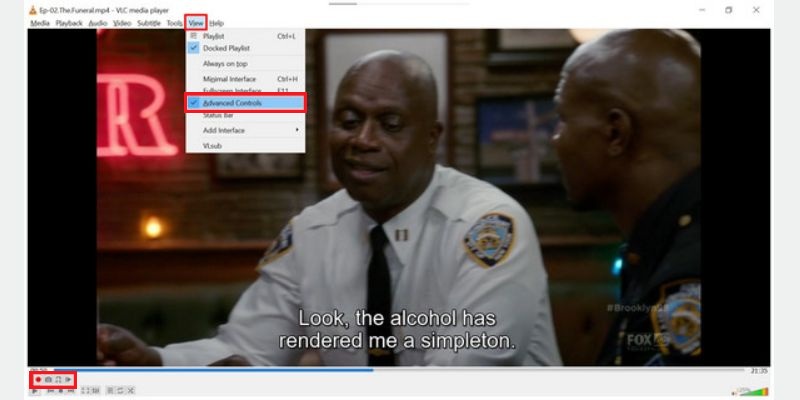
- Open VLC player frame by frame and open your preferred video file. You can access it via the top menu, where you'll find items like View and Advanced Controls. This choice will introduce another row of playback buttons directly above the conventional controls at the bottom of the screen. These additional buttons include tools such as record, snapshot, loop, and frame-by-frame.
- Observe the new set of icons that are displayed in the advanced control panel. The Frame by Frame button is typically a small filmstrip or a single frame. By pressing this button, you can make your video advance one frame at a time, giving you fine-grained control over playback.
- Stop the videos whenever you want to focus on specific parts. Next, press the Frame-by-Frame button to advance one frame at a time. You may restart this process repeatedly to examine details, take screenshots, or investigate a specific action. Click the Play button when done to revert to normal playback.
Additional Tips for Frame-by-Frame Navigation
Best Alternative Tool for Backward Frame Stepping
VLC Media Player allows users to advance videos one frame at a time, but does not support stepping backward through frames. This made it a major limitation for detailed video analysis. For users who need full bidirectional frame navigation, AceThinker Media Player offers an excellent alternative. This software allows videos to be slowed down to extremely low speeds. It enables near real-time, frame-by-frame inspection. Such control is invaluable for reviewing high-paced sequences, analyzing motion in sports or animation, or studying subtle details that are often missed during normal playback. The built-in snapshot feature allows users to freeze any frame and capture high-resolution images instantly. It is perfect for tutorials, presentations, or documentation. AceThinker also supports a wide range of video formats, including Full HD, 4K, and Blu-ray. This tool provides smooth and reliable playback. Its intuitive interface and precise control options make it an ideal choice for anyone seeking a more accurate and flexible frame-level navigation experience than VLC can offer.
Try it for Free
Step 1 Launch and Open Your Video
Launch AceThinker Media Player and use the Open File option to load the video you want to analyze. The player supports a wide range of formats, including Full HD, 4K, Blu-ray, and more, so you can work with them without compatibility issues. Ensure the video is playing smoothly before starting frame-level navigation.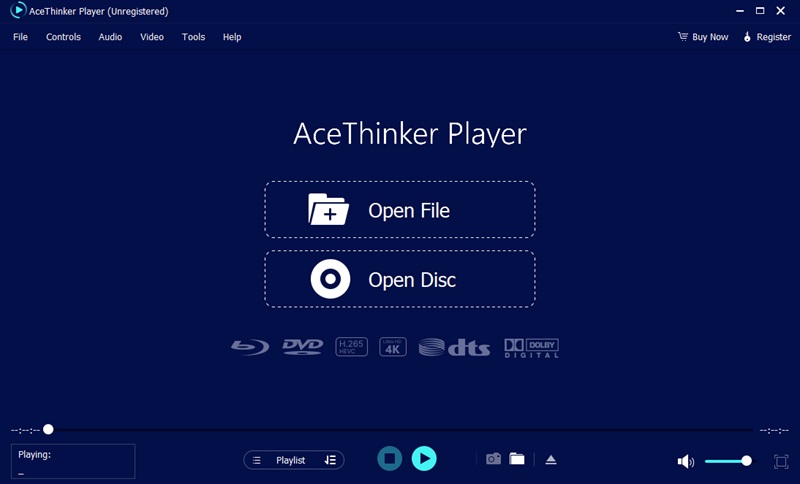
Step 2 Slow Down Backward Playback
Use the playback speed controls to slow the video to a fraction of its original speed. Slowing the video allows you to observe fast movements and subtle actions clearly. Once slowed, you can pause and backward frame by frame stepping, giving you precise control over the sequence you are analyzing.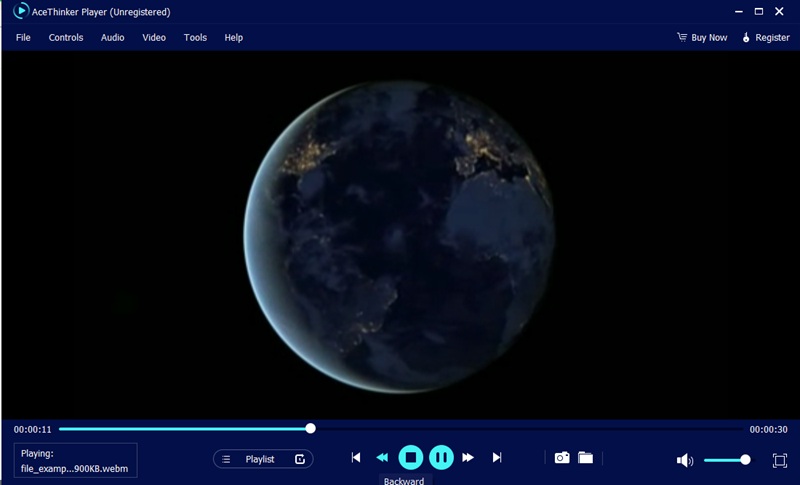
Step 3 Capture Frames and Key Moments
Pause the video at the exact frame you want to preserve, then use the built-in snapshot feature to capture a high-resolution image. The snapshot tool instantly saves the image to your selected folder. It is easy to create visual guides, instructional materials, or reference documentation. Repeat this process as needed for multiple frames or sequences.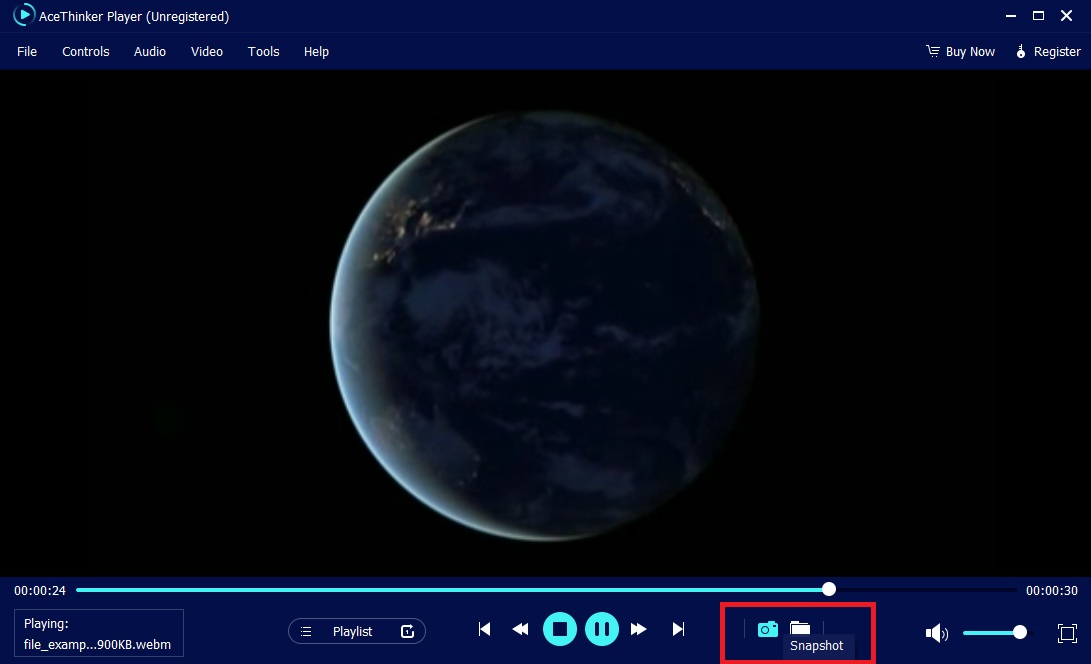
Conclusion
Go frame by frame in VLC media player to navigate videos with high accuracy, whether using the keyboard shortcut or the frame-by-frame button on the screen. With one frame per second, users can take precise screenshots, examine motion and transitions, or perform extensive editing that would be challenging with typical playback. Despite some limitations, such as the lack of backward frame-by-frame options, VLC's usability, accessibility, and broad feature set make it invaluable to students, video editors, researchers, and video enthusiasts. To maximize efficiency, users are recommended to personalize their shortcuts, integrate frame-by-frame playback with features such as playback speed control and statistics tracking, and utilize VLC's advanced capabilities to refine their video analysis and creative projects.