menu

AI Text to Video - Transform Text into Engaging Video

The AI text-to-video tool turns simple text into short, realistic videos in just a few clicks. It's ideal for content creators, marketers, and everyday users who want to create engaging videos fast without needing editing skills or complex software.

Bring Your Words to Life

generate realistic quality

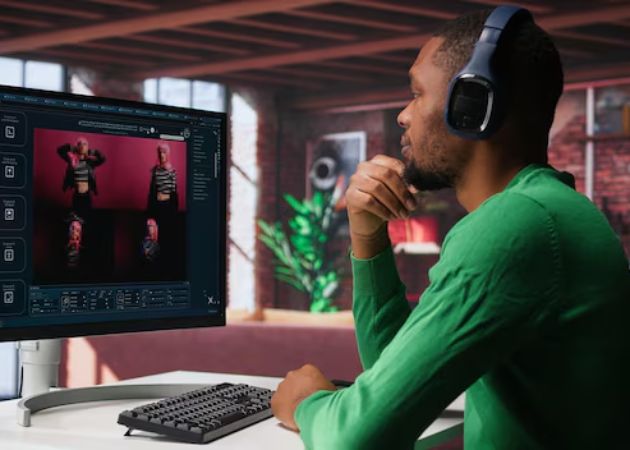
Generate Realistic Quality

Our AI text to video tool makes it easy to create videos that look natural, even when you start with just a short description. The movement, lighting, and timing feel smooth and lifelike, so the results don't come across as stiff or artificial. This helps your videos look natural on social media, where real and eye-catching content matters most. Since each clip can be up to 8 seconds long, it works well for quick content that needs to grab attention right away. You only need to describe the scene, and the tool takes care of turning your words into visuals.

Craft Videos Instantly

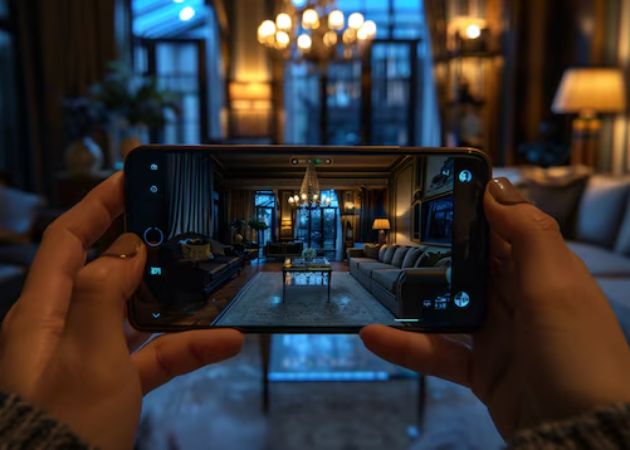
Creating videos feels quick and smooth because everything processes fast from start to finish. You don't have to wait long to see results, which is helpful when you're working on tight schedules or sudden ideas. The buttons and steps are easy to follow, so you can move through the process without confusion. This makes it easy to generate videos efficiently, even if it's your first time using our online AI text to video generator. Instead of getting stuck on settings, you can focus on bringing your idea to life.

craft videos instantly
experiment with ai models

Experiment With AI Models

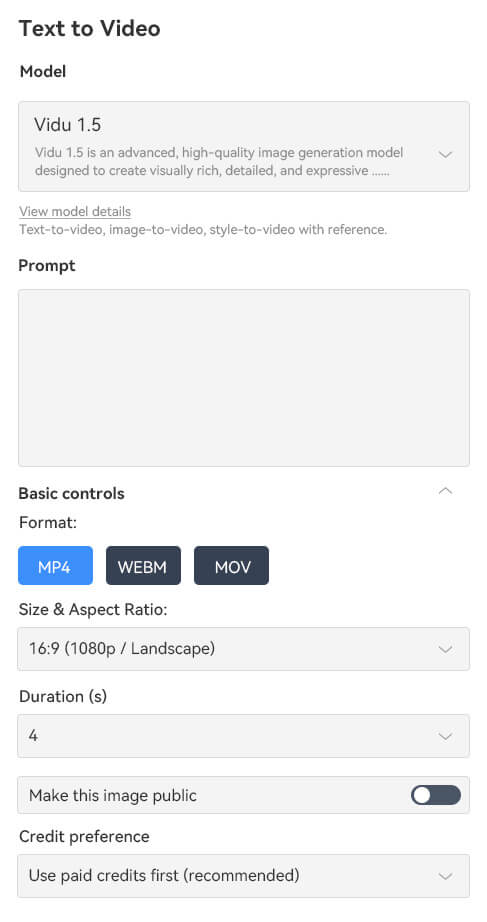
With our AI text to video online, trying different styles feels easy and enjoyable, not confusing or technical. You can switch between AI models like Vidu 1.5, KlingAI V1 Pro, Veo 3.0 Fast, and more to find the look that best fits your message. Instead of being stuck with one style, you can test different results until the mood and motion feel right. This is useful when your content goals change or when you post on different platforms. You get the freedom to explore new ideas without having to start over each time.

Save Videos in MP4

Once your video is ready, saving it is straightforward and stress-free. MP4 files work smoothly across phones, computers, and social platforms, so you don’t have to worry about compatibility. This makes sharing, posting, or editing your clips later much easier. You can quickly download and reuse the video wherever your content needs to go. In the end, it keeps your workflow simple and flexible. Overall, our text to video generator that exports MP4s ensures your videos are ready for real-world use.

save videos in mp4

How to Easily Generate Text to Video

  • 01
    Launch Text to Video
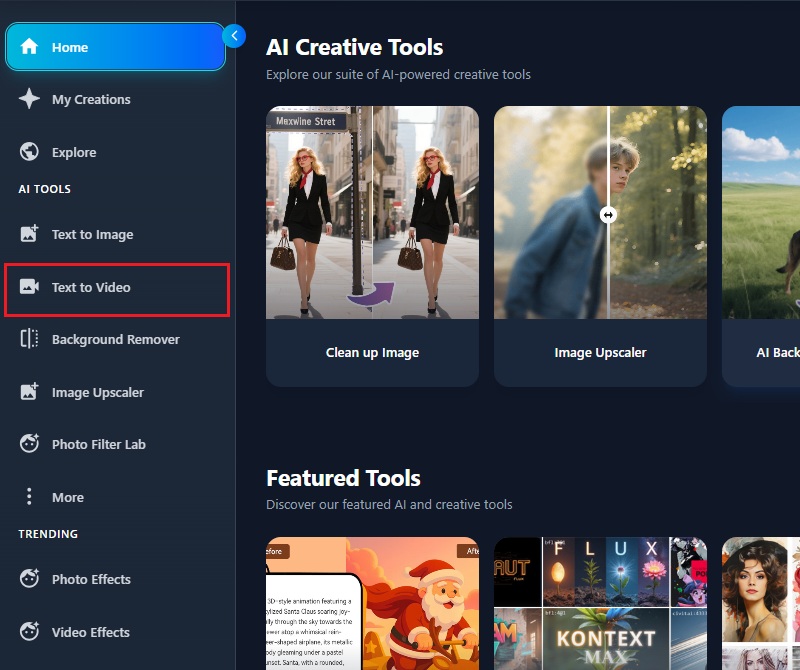
    Start by opening our AI Text to Video platform in your web browser. Next, log in to your account or create a new one if you don't have one yet. Once you're in, you'll land on the main dashboard. Here, simply click the “Text to Video” option to get started.
  • 02
    Insert Prompt
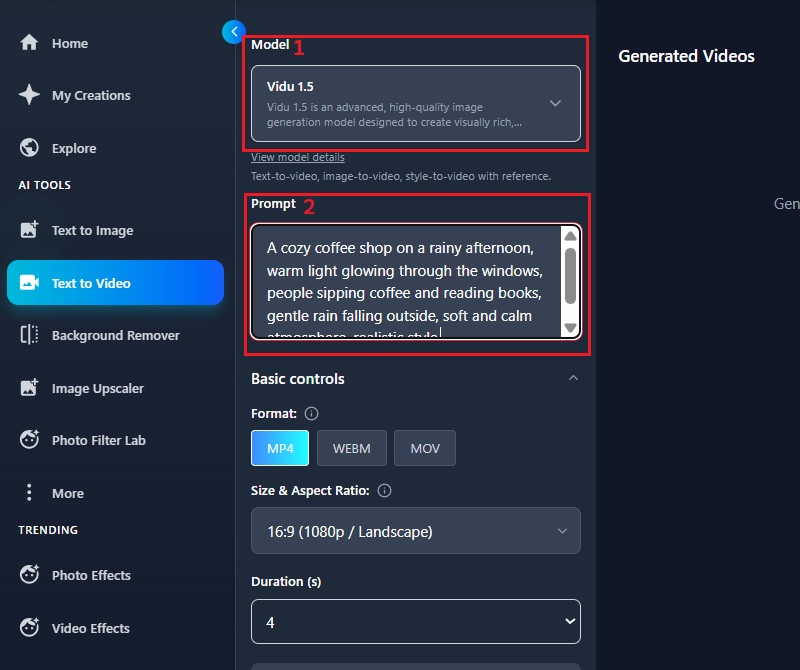
    Once on the text to video interface, select an AI model you want to use for your video generation. After that, you can input the text prompt in the designated field. Make sure to describe it with sufficient detail to guide the AI in generating the video.
  • 03
    Generate Video
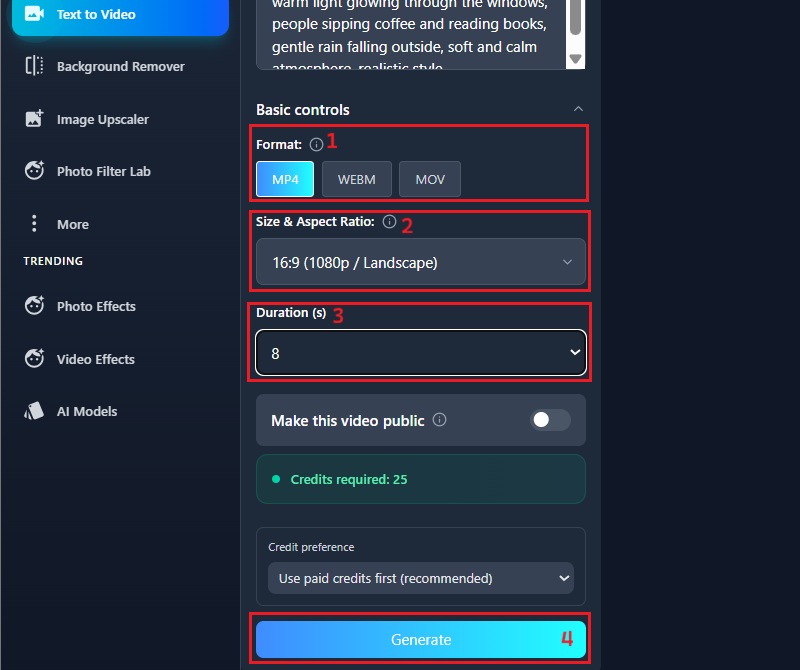
    Next, pick your preferred output format and aspect ratio for your video. Then, select the resolution for your video output. Finally, click the "Generate" option to start the generation process.
  • 04
    Download the Generated Video
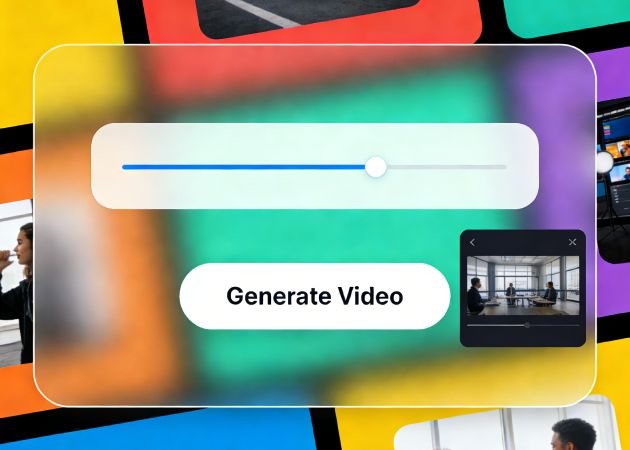
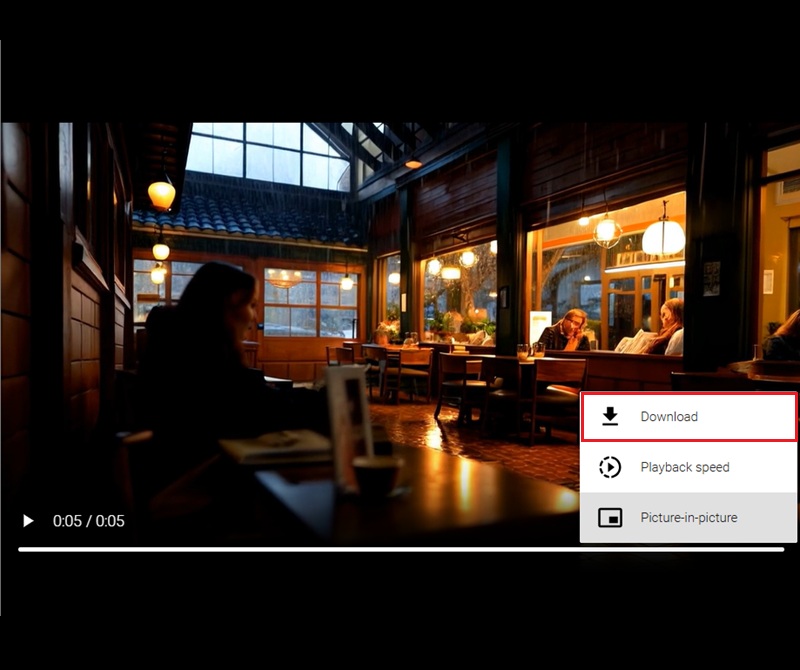
    Wait until the video is generated; it may take a few seconds or a minute. Once done, the video will appear on the preview panel. You can hover over the generated video and click the download button. Then, you will be redirected to a new window where you can download your video.
launch text to video
insert prompt
generate video
download the generated video

Check Out More Options

These tools help make photos clearer, add creative styles, protect image details, and improve the overall look in just a few steps. They save time while giving users more control and freedom over their images.
"I tried this online AI text-to-video generator for my Instagram posts, and it's surprisingly fast. The videos look natural and fit perfectly on social feeds. It saves me a lot of time compared to editing manually."
Rosie Spence, Social Media Manager
2025-12-15
iiiii
iiiii

"This tool is simple to use, even if you're not tech-savvy. I just type a short description, and the video is ready in seconds. The results look professional enough for my YouTube shorts."
lyas Townsend, Content Creator
2025-12-01
iiiii
iiiii

"I was impressed with how realistic the videos look. Even with a short prompt, the AI handles motion and lighting well. It's really helpful for fast social media posts."
Maisey Lyons, Social Media Influencer
2025-11-22
iiiii
iiiii

"The best part is how quickly I can turn text into a video. The buttons and workflow are easy to follow, so I don't get stuck. The clips look professional enough for ads."
Irene Jenkins, Digital Marketer
2025-11-04
iiiii
iiiii

"This tool makes creating promo videos much faster. I just type a few lines, and the video is done in seconds. It's simple, useful, and saves me a lot of effort."
Randy Sampson, Entrepreneur
2025-11-15
iiiii
iiiii

"I use it to make small explainer clips for my lessons. The process is straightforward, and I can download the MP4 right away. It helps me save time while keeping students engaged."
Samara Carillo, Online Teacher
2025-10-25

iiiii
iiiii

Why Choose Us

Some Questions and Answers about AI to Text Generation

Can I use the generated video for commercial use?

Yes, you can utilize the generated videos for commercial purposes. This means you can include them in ads, marketing campaigns, or any project. Our AI text-to-video creator tool does not impose any restrictions on videos for business use. You don't need extra permission to use them commercially. However, it's important to ensure your prompts or content don't include any copyrighted material. This way, you avoid any legal issues or infringements when using the generated videos for commercial endeavors.

Does it support image to video?

Yes, the tool supports turning images into videos. You can upload a single photograph, and it will animate it based on the filter you have used. This is useful if you want to make slideshows or short clips from existing pictures. The process is simple and fast, even if you don't have video editing experience. You can add effects or motion to make the video more engaging. It's a good way to reuse images for social media or presentations. You can experiment with different images to see which ones work best.

What formats can I save my videos in?

You can save your videos in multiple formats, including MP4, WEBM, and MOV. MP4 is the most common and works on almost all devices and platforms. WEBM is often used for web projects, while MOV is ideal for higher-quality editing workflows. You can choose the format depending on where you plan to use the video. For example, social media platforms usually support MP4. The flexibility in format makes it easy to share or edit the videos later.

What sizes can I save my videos in?

You can save videos in different aspect ratios, such as 16:9, 6:9, or 1:1. This lets you match the video to specific platforms or screen sizes. For example, 16:9 works well for YouTube, 1:1 is perfect for Instagram posts, and 6:19 is good for vertical mobile viewing. Choosing the right size helps your video look professional without cropping or stretching. You can easily switch between sizes based on your content needs. It gives you the flexibility to quickly generate videos for different platforms.

In what quality can I save my videos?

You can save videos in different qualities, from 360p up to 1080p, depending on your needs. Lower resolutions like 360p are good for quick uploads or when file size matters. Higher resolutions like 1080p deliver clear visuals and smooth motion, making them suitable for social media, presentations, or professional use. Choosing the right quality helps keep details sharp without slowing down sharing or playback. You can easily adjust the settings to balance clarity and file size..

Back to Top
Contact Us
Learning Center