

















 A double chin in photos often happens because of lighting, camera angles, or how you tilt your head. Even if you don't have one in real life, these small details can make it appear in pictures. Nevertheless, the good news is that you can fix this easily. With simple photo editing tools, you can smooth and adjust your image to make it look natural and clean. These tools work quickly and do not require any special skills, making photo touch-ups easier than ever. In this article, you will learn about different tools you can use to remove double chin in photo. You will also see how each option works and what makes them helpful.
Things to Do Before Editing
Before we go to the app to remove double chin in pictures, you must first do some things to make the editing process more effective. Some of these pre-editing steps include:
- Pick a clear, high-resolution photo so you can adjust details more easily and avoid blurry results.
- Always create a copy or work on a duplicate layer to keep your original image safe in case you want to undo changes.
- Make sure the lighting on your screen is bright enough, and zoom in while editing so you can refine small areas with better accuracy.

Remove Double Chin in Photoshop
If you want to get rid of double chin in photo professionally, Adobe Photoshop is a great choice. It has potent features that let you make precise changes while still keeping your photo looking natural. For example, the Pen Tool helps you make accurate selections around the chin or any area you want to edit. You can also utilize the Liquify tool to gently push, pull, or shape your face to make it look slimmer without appearing edited. Before editing, you can also increase the photo resolution in Photoshop to ensure sharper, cleaner results. In addition, Photoshop's Warp feature lets you adjust facial width, chin height, and overall shape with better control. Here are the steps to remove a double chin from a photo in Photoshop.
Step 1 Make a Path
Open your Photoshop application. Then click "File" and select "Open" to upload the image with a double chin. Once the image is loaded, click the "Pen Tool" from Photoshop's toolbar on the left side of the screen. Then, trace the jawline and the neck area where the double chin is prominent. Make sure the path is closed to ensure a seamless selection, then right-click it and select "Make Selection."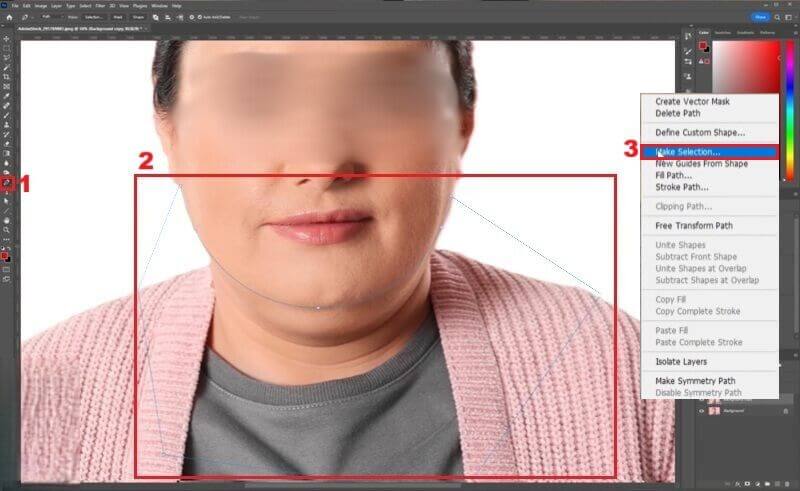
Step 2 Remove Double Chin
Once you make a selection, navigate to the Layers panel and duplicate your image by pressing "Ctrl+J" on Windows or "Cmd+J" on Mac. Then right-click Create Layer and convert this new layer into a clipping mask. After that, go back to the image, press "Ctrl + T," then right-click it and select "Warp." Then, adjust the grid to target the double chin, gently pushing it upwards and inwards to sculpt a more defined jawline.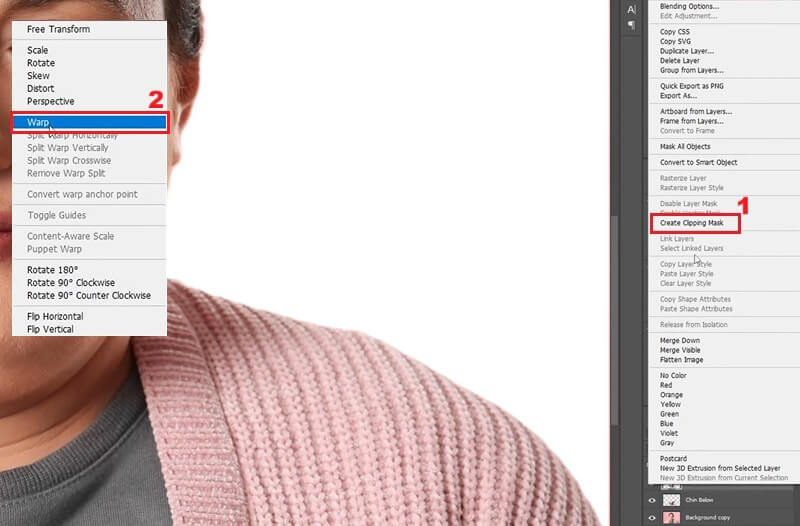
Step 3 Refine The Image
When you're done removing the double on your photo, press the "Enter" key. Then, click on the "Filter" option from the top menu and select "Liquify" to access advanced facial editing. Now, you can drag the area of your face where you want to refine and reshape certain features.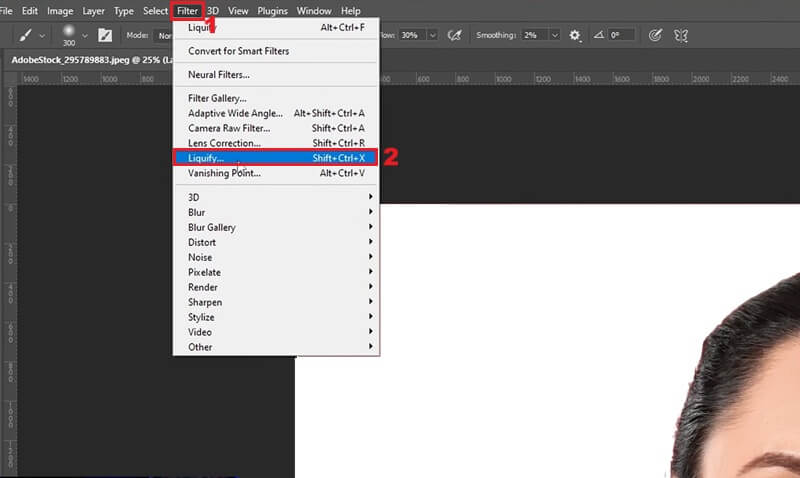
Remove Double Chin from Photo Online Free
If you don't want to install anything on your device, you can use various online photo editing tools. One of the double chin picture remover you can use is the Fotor Online Photo Editor. This web-based tool lets you remove a double chin from your photos without installing complex software. As we explored this online tool, we found its Magic Eraser feature particularly effective. It not only removes double chin from an image, but it can also remove stickers from photos, dates, and other objects. Moreover, you can adjust the brush size to achieve greater precision during the editing process. You can also zoom in and out to work on fine details, ensuring clean edits for your images. Below are the steps you can follow to remove a double chin from an online image.
Step 1 Upload Your Image
First, access the Fotor Online Photo Editor by navigating to its website. On the homepage, locate and click the "Upload Image" option. Then your file explorer will appear on your screen; from here, choose the image you want to edit.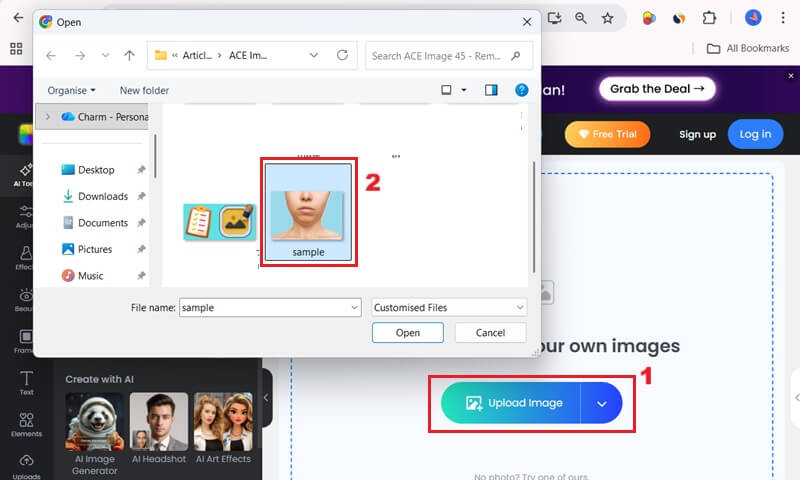
Step 2 Access Magic Eraser
When your image is uploaded, click the "AI tools" from the menu on the left side of the interface. Here, you will see different AI tools for image enhancements. From the list of tools, locate the "Magic Eraser" and click it.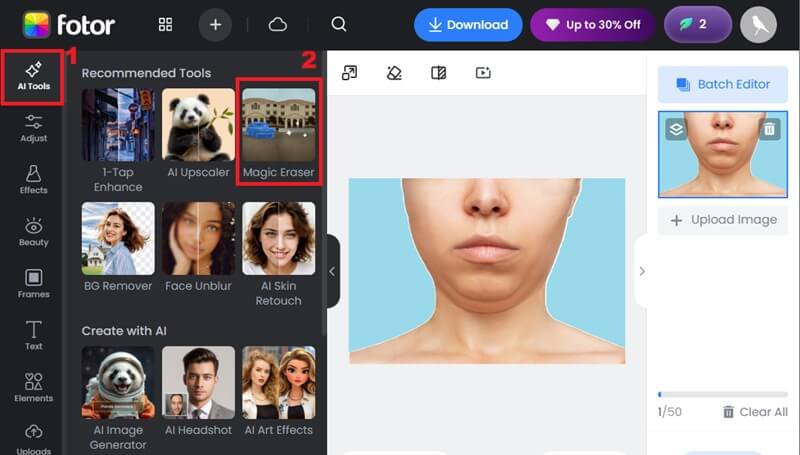
Step 3 Edit Double Chin Out of Photo
Once the Magic Eraser is active, click the "Object" option. Then, in the "Brush" section, adjust the brush size by sliding the slider, then carefully brush over the double chin area. When you have brushed the double chin part of the image, click the "Remove" option. Wait until the tool removes it. Once done, click the "Download" button to keep your image on your device.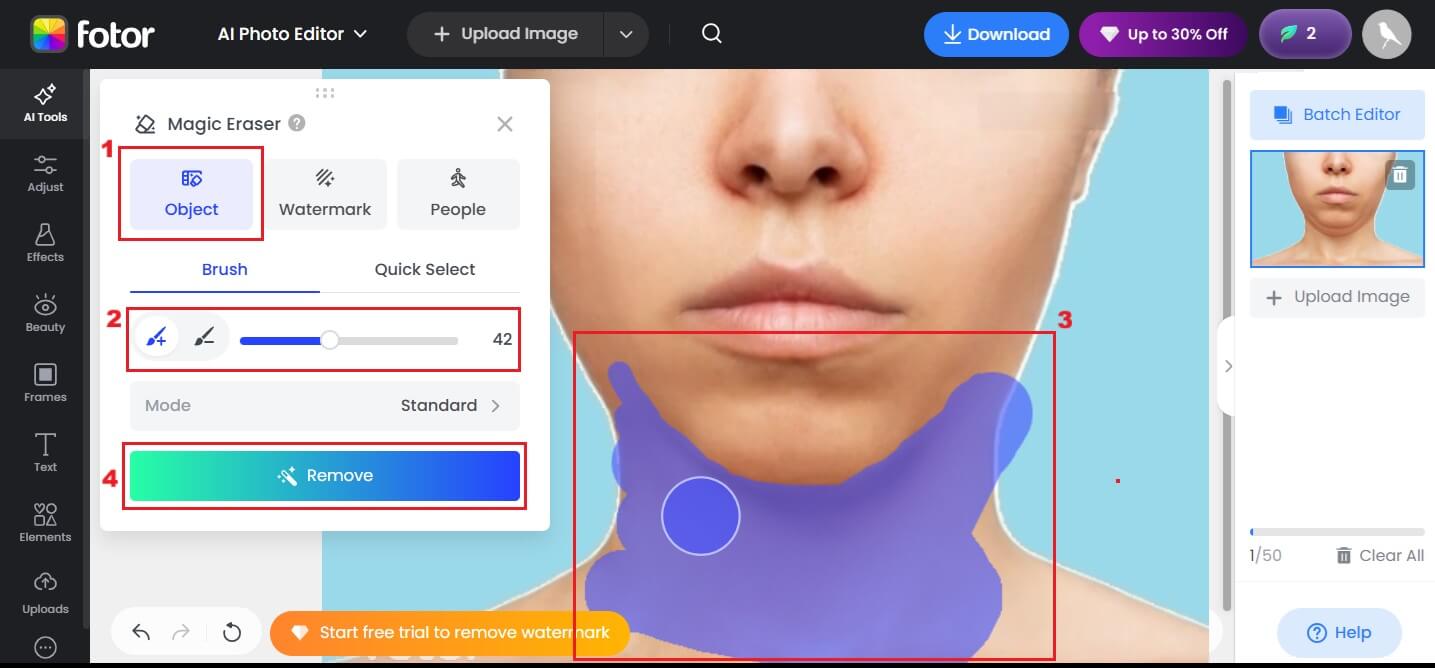
Get Rid of Double Chin in Photo Using Mobile Apps
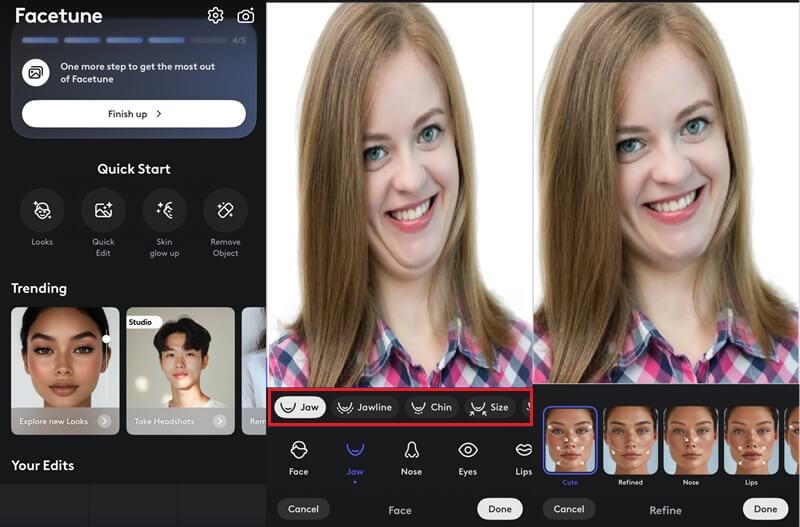
1. Facetune
The Facetune app provides many easy-to-use photo editing tools, including an AI jawline editor. If your photo shows a double chin, Facetune can gently reshape the jawline, giving a natural look while keeping your face looking like you. To remove your double chin using this app, you can dive into the Face tool section, where you'll find options for your chin, jaw, and other facial features. Here, you can modify the jawline by utilizing a slider to refine your double chin subtly.
For more focused edits, you can open the Reshape tool. Inside, you'll find Reshape, Refine, and Resize, which let you adjust your facial features with better control. However, to save your edited image, you need a subscription to Facetune’s premium features ($25/month).
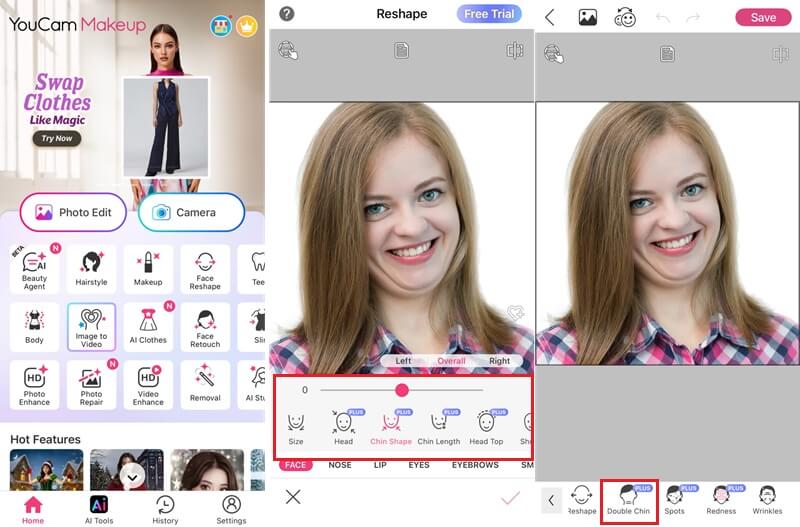
2. YouCam Makeup
Another option for removing a double chin from your photos is the YouCam Makeup app, which also offers a comprehensive suite of AI-powered editing tools. Like Facetune, it has a dedicated "Face Shaper" feature that lets you refine your photo's facial features. To edit out the double on your image, you can click on the "Photo Edit" option of the app and upload the image you want to edit.
After that, you can access the "Double Chin" option to remove it instantly. Furthermore, you can also access the other face-sharpening features of the photo editor to remove double chin features and adjust the chin shape and jawline of your image. Once everything is set, you can download your image to your device.
Tips to Prevent Double Chin in Future Photos
To avoid dealing with a double chin in your future pictures, a few simple posing and camera tricks can make a big difference. Here are some tricks you can try:
- Tilt your head slightly upward: Raising your chin a little and pushing your face forward creates a cleaner outline and prevents your neck from folding.
- Use a higher camera angle: Holding the camera above eye level naturally highlights your face and reduces shadows that can create a double chin effect.
- Choose soft, even lighting: Good lighting under the chin helps avoid harsh shadows that make the area look fuller.
- Maintain good posture: Straightening your back and relaxing your shoulders can instantly improve how your jawline looks on camera.
- Avoid looking down at your phone or camera: Looking down creates folds under the chin, so try to keep the lens at or above eye level.
"Bad lighting can make your face appear wider."

Bonus Tips: Enhance Your Images
Suppose you want to further enhance the overall aesthetic of your images beyond just removing a double chin. In that case, you can access AceThinker AI Image Generator & Editor. This online tool is a comprehensive platform for generating and editing images with advanced AI capabilities. That said, it showcases a text-to-image, background remover, image upscaler, and more tools. In this section, we will show you how to use the image upscaler and object remover, or clean up the image with the tool. These features are specifically important in improving your photographs.
Image Upscaler
As mentioned above, you need to pick a clear, high-resolution image to ensure optimal results. With that in mind, AceThinker AI Image Generator & Editor offers advanced features that can upscale image resolution and improve image clarity. Its online image upscaler can increase JPEG resolution with different upscaling levels, such as 2x and 4x. This helps make your photos look clearer and more polished.
Step 1 Add Your Image
Access the AceThinker AI Image Generator & Editor by navigating to its official website. From here, click the "Image Upscaler" option to be redirected to the page where you can upload your image. To upload your photo, hit the "Upload Image" box.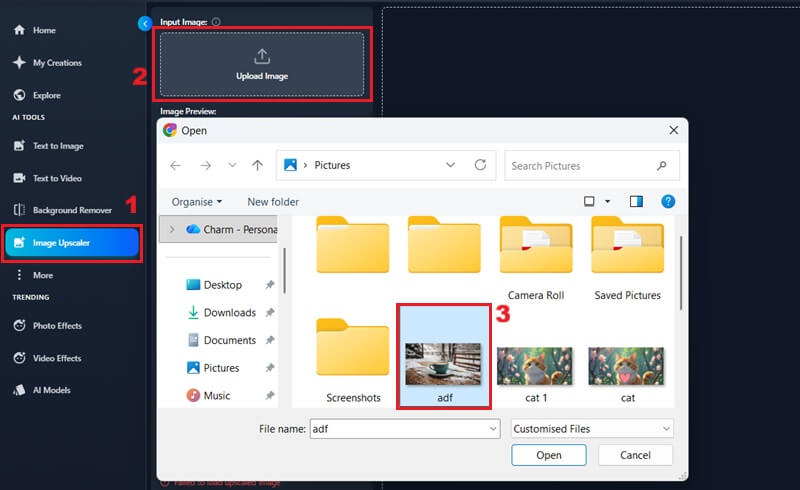
Step 2 Upscale Your Photo
After uploading your image, choose the upscale level you want, such as 2x or 4x, to boost its resolution and sharpness. Then pick your preferred output format: PNG, JPG, or WEBP. Finally, click “Upscale Image” to start the process and enhance the overall quality and details of your photo.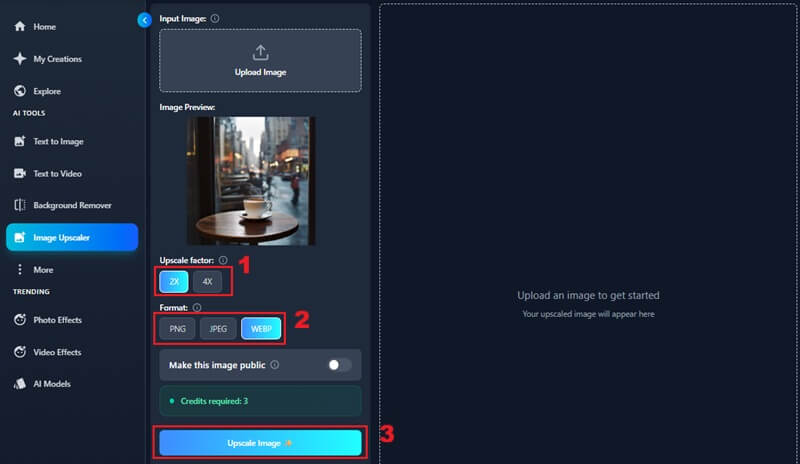
Step 3 Save Upscaled Image
Once the upscaling process is complete, the upscaled will emerge on the right panel of the interface. Clicking the "Download Image" option will save the upscaled image on your device. You can check the image quality and resolution to see the improvements.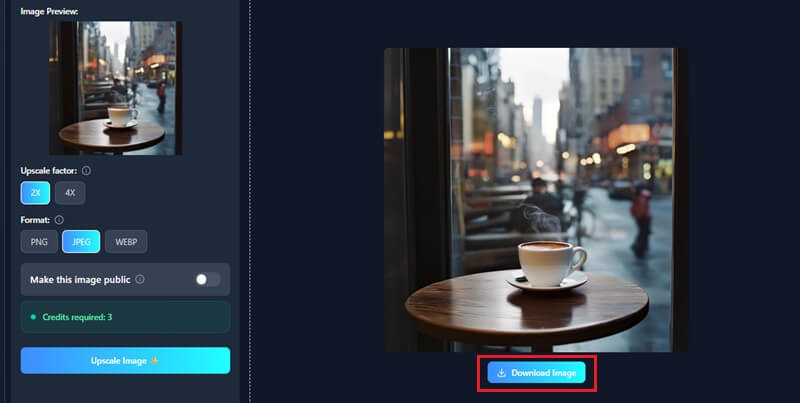
Clean Up Image
This feature is especially valuable for removing unwanted elements or blemishes from your photographs. For instance, when dealing with photobombed images, unwanted dates and stickers, you can employ the Clean Up Image online tool. This feature works similarly to generative inpainting. It allows the AI to rebuild the masked parts of your image and smoothly remove unwanted objects.
Step 1 Access Clean Up Image Feature
On AceThinker AI Image Generator & Editor, start by clicking the "More" option. Next, select the search feature and type "Clean Up Image." When it appears in the results, click it to open and access the tool.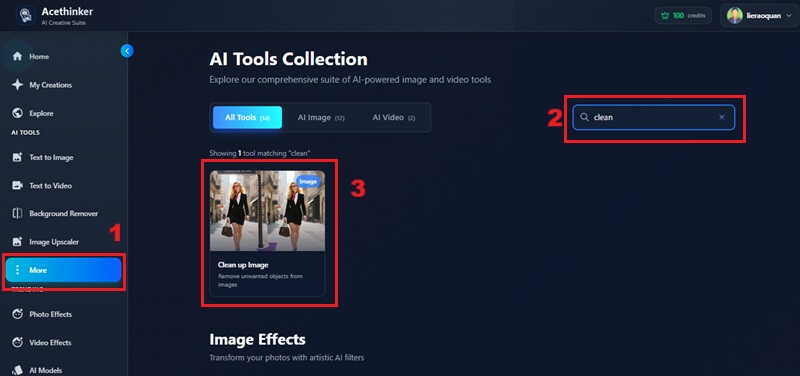
Step 2 Upload Image
Once the tool is active, click the "Upload your Photo" to begin importing the image you wish to edit. When the File Explorer is open, select the image you want to clean up. Lastly, click the "Open" option in File Explorer to complete the upload.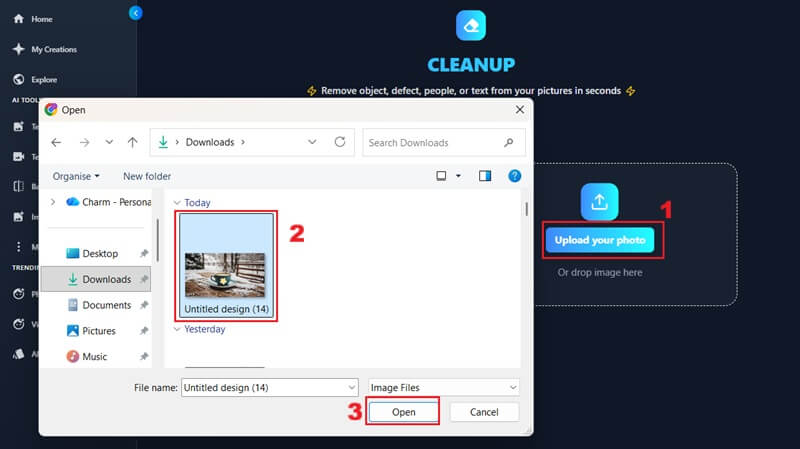
Step 3 Clean Up Your Image
After your image is uploaded, adjust its brush size by sliding the slider. Subsequently, brush up the objects in your image that you want to remove. Wait until the tool successfully removes the object you want to remove.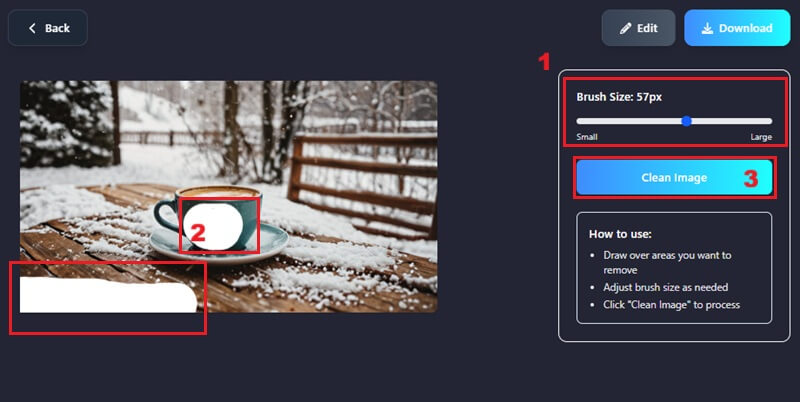
Step 4 Download the Edited Image
Upon completion of the cleanup process, you will see your edited image. Then, in the upper right corner of the tool, click the "Download" button to save your refined image to your device. That's how easy it is to utilize this object remover.
Frequently Asked Questions
Can I remove a double chin in my photo?
Yes, there are multiple ways to remove a double in your photo. With advanced AI-powered editing tools and techniques, such as generative inpainting, you can seamlessly edit out the appearance of your double chin. If you prefer professional, accurate results, you can use Photoshop.

Do I need advanced skills to remove a double chin in photos?
Not at all. Many apps are designed for beginners and offer easy-to-use features. Tools like Liquify (Photoshop) and Reshape (FaceTune/YouCam) let you make small adjustments quickly. Even without prior experience, you can achieve a clean, natural look in your images.
Will editing a double chin affect the rest of my face?
If done carefully, it should not. Most tools allow precise adjustments, so only the chin area is changed. Always work in small steps and compare your work to the original photo to keep your face looking natural.
| Tool | Ease of Use | Natural Results |
|---|---|---|
| Photoshop | Medium – requires some learning | Very natural if used carefully |
| Fotor Online Photo Editor | Easy – beginner-friendly | Good for light adjustments |
| Facetune | Very easy – intuitive interface | Natural if edits are subtle |
| YouCam Makeup | Easy – designed for quick face editing | Looks natural for small tweaks, but heavy edits can be noticeable |
Conclusion
Removing a double chin from photos has become simple once you utilize the right tools. Whether you use professional software like Photoshop or easy-to-use mobile apps like Facetune and YouCam Makeup, you can achieve natural-looking results. The key is that you make slight adjustments rather than drastic changes, so your face still looks real. By following these tips and carefully using a photo editor to remove a double chin, anyone can improve their photos and enhance their jawline. As a result, this helps you feel more confident sharing images without worrying about a double chin.